How to save and restore a shopping basket for ordering
When you are registered and logged in, you can save all of the items in your current shopping basket to a saved shopping basket for purchase or reference later. Enter a name or label for your shopping basket on your current shopping basket page and press the “Save Basket” button.
Related Links
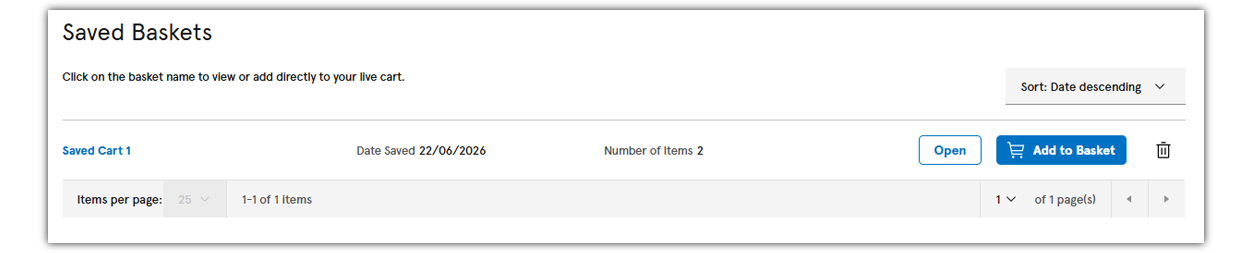
Saving a shopping basket
When a shopping basket is successfully saved, you will be taken to a page listing your saved shopping baskets under the My Accounts section. The newly saved shopping basket should be the last one on the list.
NOTE: When a cart is saved, the current shopping cart will be reset to empty. This allows you to create a new cart for checkout or saving. Once a cart has been saved, the quantities or items in the saved cart cannot be changed on the saved cart detail page.

Loading a saved shopping basket
There are several ways to add the items from a saved shopping basket to your current shopping basket:
- Check the box and press the “Add to Shopping Basket” button from the saved shopping basket list page. You can add all the items from one or more saved shopping baskets to your current shopping basket by checking the box and clicking the “Add to Shopping Basket” button.
- Select the saved shopping basket you want from the list and click the “Update” button. From the current shopping basket, you can select from your list of saved shopping baskets and click the “Update” button.
- Check the box next to the items you want from the list and click the “Add to Current Shopping Basket” button. From a saved shopping basket details page, you can add one or more specific items by checking the box next to each item row and clicking the “Add to Current Shopping Basket” button.
- We'll store your saved shopping baskets indefinitely as long as they've been accessed in the past 12 months. Shopping baskets that have not been accessed in the past 12 months will be deleted automatically.
NOTE: Saved shopping basket items added to the current shopping basket will be merged with items already in the shopping basket. If there are duplicate items in the current shopping basket, the item will only be listed once and the quantity will be increased by the quantity of the saved shopping basket. If you want to increase or decrease the quantity of an item for an order, please change the total in the current shopping basket and click the “Update Basket” button.

Deleting a saved shopping basket
Simply log in and view the My Account: Saved Shopping Basket page, and check the box on the row for the shopping basket you want to delete. Then click the “Update” button. The shopping basket will be deleted immediately.
NOTE: Deleting a saved shopping basket is permanent and cannot be reversed.
Placing Orders
Product lead time refers to the estimated time we are expecting to have additional inventory from the manufacturer that will be available for customers to order.
When a part is on backorder, it means that the item is currently out of stock or unavailable for immediate delivery due to either high demand, production delays, or supply chain disruptions. We will advise you of the expected waiting time for delivery and offer substitutes or similar items as an alternative.
If you want to save your basket online for purchase later you can use the Saved Baskets feature.
Order minimums and multiples refer to the minimum quantity of a product that a customer must purchase in a single order and the subsequent multiples in which additional units can be ordered. Certain products, like resistors or cables, come in reels or packs of a set length or quantity. They are not available for sale in quantities below certain levels because it is not economical to package them in smaller quantities.
You can enter a voucher code on the shopping basket page at the ‘add a voucher code’ box. When you have entered a valid voucher code, press the “apply” button, and the shopping basket total should display the updated discounted total.
Related Links
You cannot directly check out from the saved basket page. You must add items from a saved basket to your current basket for check out. For more details visit the Saved Baskets page. Related Links
Yes. In the shopping basket, you can save your basket by entering the name of your choice in the Save basket field, then click “Save basket”.
Quotes, Delivery & General Info
Yes, visit our Contact Us section to find out how to contact us.
A Freight Forwarder exports your delivery for you. If you are delivering to a freight forward service, we are required to ask for the address of the ultimate destination.
See the Scheduled Orders section for more information.
Special instructions and Delivery notes let you attach information to your order. They will appear on all correspondence regarding your order. As you checkout, the delivery page has a field named “Delivery Notes”, enter your notes into this field to take advantage of this feature.
Order notes let you attach information to your order for use by you and your company. They will appear on all correspondence regarding your order. As you checkout, the order information page has a field named "Order Notes", enter your notes into this field to take advantage of this feature.
See the Quotes section for more information.
Yes. In the shopping basket, use the Line Notes field to enter information to help you or your staff. Line notes will appear on all the order packing slips. Keep in mind that line notes are only for use by you and your company internally.
At this moment, we don't offer Saturday delivery, you can refer to Delivery Information section for more information.
Orders & Account/Payment
We'll store your saved baskets indefinitely as long as they've been accessed in the past 12 months. Baskets that have not been accessed in the past 12 months will be deleted automatically.
Same-business-day dispatch for in-stock items:
- The order cut-off time is 9 p.m. for the same-business-day dispatch of in-stock items
- We will dispatch orders received on Saturday or Sunday the following business day
Although we strive for fast delivery of your orders, certain orders may take longer to dispatch. These include, but are not limited to:
- Orders of goods not currently in stock
- Orders placed with a request for a future release date, or a consolidated shipment
- Orders with special packaging or handling requests
- Orders placed by an account which is under credit review
Please note that customs clearance may also impact the delivery time.
For backorder preferences, you may choose from the following: Backorder allowed - We'll deliver in-stock items immediately and place any out-of-stock items on backorder. Items on backorder will be delivered as they become available. Therefore, your order may arrive in single or multiple deliveries. Deliver order complete - If any items in your order are out of stock, we'll hold your order until all items become available. Your order will arrive in one delivery.
See the Trade Account section for more information.
Yes. If you are over your account "credit limit" credit hold, you can still place orders using a credit card. If you are on "stop order" credit hold, you must contact an element14 service representative at 1300 639 275
The following characters can be used when filling in forms:
- a-z, A-Z, 0-9
- All punctuations and most special characters except ‘|’ & ‘\’ (Note: fields such as post codes, phone numbers etc. will not accept special characters)
- Bullet point for multi-byte characters
On the Registration page, enter your Customer ID and element14 Account Number to place your order on account. If you have already registered without your ID and Account Number, contact a service representative for assistance by calling 1300 639 275.
The prices you find on the element14 website do reflect when products are on sale or promotion.
There are a few products, however, that we cannot discount because of franchise agreements with the manufacturer. The promotional price will not be applied to those products. You'll only see the standard price.
Discounts cannot be stacked. If you are receiving a promotional discount you will not get other discounts such as corporate service agreement or website specific discounts. Different discounts take precedence depending on your company's agreement with element14.
Order Management
Product Information & Support
How can we help you?
Customer Service: 1300 361 005
Product Technical Support: 1300 361 740 9:00am - 6:00pm (AEDT/AEST), Monday - Friday