 Frequently Asked Questions (FAQs)
Get quick and easy answers to your most common questions on Raspberry Pi.
General Information
- Learn how to code – the Raspberry Pi comes pre-loaded with Scratch and Python
- Learn through gaming – Students can build their very own game with Python, or create a whole new world with the pre-installed, Special Pi edition of Minecreft. This edition of Minecraft includes a Python programming interface, so with a few lines of code students can erect an entire monument out of thin air
- A mini, cost-effective computer and media centre – The Raspberry Pi is cable of doing everything you’d expect a desktop computer to do, from browsing the internet and playing high-definition video, making spreadsheets, word processing and even functioning as a server
- Let’s students interact and build – The Raspberry Pi connect to the internet seamlessly and is able to interact with add-ons such as lights, sensors, switches and much more. Students can program the Pi to monitor plant life, or even create and automatic pet-feeder. The possibilities really are endless with a creative mind.
- Broadcom BCM2836 Arm7 Quad Core Processor powered Single Board Computer running at 900MHz
- 1GB RAM
- 40pin extended GPIO
- 4 x USB 2 ports
- 4 pole Stereo output and Composite video port
- Full size HDMI
- CSI camera port for connecting the Raspberry Pi camera
- DSI display port for connecting the Raspberry Pi touch screen display
- Micro SD port for loading your operating system and storing data
- Micro USB power source
- Broadcom BCM2836 Arm7 Quad Core Processor powered Single Board Computer running at 900MHz
- 1GB RAM so you can now run bigger and more powerful applications
- Identical board layout and footprint as the Model B+, so all cases and 3rd party add-on boards designed for the Model B+ will be fully compatible.
- Fully HAT compatible
- 40pin extended GPIO to enhance your “real world” projects. GPIO is 100% compatible with the Model B+ and A+ boards. First 26 pins are identical to the Model A and Model B boards to provide full backward compatibility across all boards.
- Connect a Raspberry Pi camera and touch screen display (each sold separately)
- Stream and watch Hi-definition video output at 1080P
- Micro SD slot for storing information and loading your operating systems.
- Advanced power management:
- You can now provide up to 1.2 AMP to the USB port – enabling you to connect more power hungry USB devices directly to the Raspberry PI. (This feature requires a 2Amp micro USB Power Supply)
- 10/100 Ethernet Port to quickly connect the Raspberry Pi to the Internet
- Combined 4-pole jack for connecting your stereo audio out and composite video out
Operating System
It works in much the same way as Windows or Mac and is just as easy to use. The layout is the same and all the shortcuts you and your students are used to still exist.
- Arch Linux
- OpenELEC (Xbox Media Centre)
- Pidora
- RISC OS
- RaspBMC (Xbox Media Centre)
- Raspbian (Raspberry Pi Foundation’s preferred operating system)
- Linux
- OpenELEC (Media Centre)
- Pidora
- RISC OS
- RaspBMC (another Media Centre), and
- Raspbian (the most popular and the Raspberry Pi Foundations preferred OS)
Functionality
If your HDMI monitor or TV has built-in speakers, the audio can be played over the HDMI cable, but you can switch it to a set of headphones or other speakers plugged into the headphone jack. If your display claims to have speakers, sound is output via HDMI by default; if not, it is output via the headphone jack. This may not be the desired output setup, or the auto-detection is inaccurate, in which case you can manually switch the output.
Getting Started
Tip: Everything you need to know about getting started with the Raspberry Pi can be found here.
Contact our Customer Service team on 1300 361 005 to receive a copy.
List of items you will need:
- 1 x Raspberry Pi 2 Model B board
- 1 x USB Keyboard (or wireless version USB dongle)
- 1 x USB Mouse (or wireless version with USB dongle)
- 1 x microSD card (minimum 8GB capacity)
- 1 x 5V 2A USB power supply
- 1 x HDMI or VGA monitor (for VGA monitors, you’ll need to grab a HDMI-VGA adapter)
| Product | Description | Price |
|---|---|---|
 Raspberry Pi Board (Order Code: 2461030) | Latest single board computer to be released by the Raspberry Pi Foundation. It is the highest spec variant of the Raspberry Pi, perfect for learning, coding, and creating your own projects. | (excl GST) AUD $48.00 Bulk purchases will receive a discount |
 Power Supply (Order Code: 2444596) | The Raspberry Pi needs power to run. This plug is tested for AU & NZ. | (excl GST) AUD $13.50 Bulk purchases will receive a discount |
 8GB SD Card pre-formatted with NOOBS (Order Code: 2461033) | The microSD card comes pre-loaded with NOOBS and the latest version of Raspbian Operating System for the Raspberry Pi. | (excl GST) AUD $15.70 Bulk purchases will receive a discount |
 HDMI Cable (Order Code: 2464939) | A high speed HMDI cable is needed to connect the Raspberry Pi to a display screen. | (excl GST) AUD $12.57 Bulk purchases will receive a discount |
The extras are:
| Product | Description | Price |
|---|---|---|
 Wireless Keyboard / Mouse Combo (Order Code: 2310262) | Features a wireless keyboard, control keys and built-in touch pad. Charges via micro USB. | (excl GST) AUD $50.31 Bulk purchases will receive a discount |
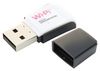 WIFI Dongle (Order Code: 2133900) | Wirelessly connects the Raspberry Pi to a wireless network. | (excl GST) AUD $9.31 Bulk purchases will receive a discount |
 Raspberry Pi Camera Board (Order Code: 2302279) | This board is a custom designed add-on for Raspberry Pi. It attaches to Raspberry Pi by way of one of the two small sockets on the board upper surface. This interface uses the dedicated CSI interface, which was designed especially for interfacing to cameras. | (excl GST) AUD $38.95 Bulk purchases will receive a discount |
 PiFACE Control & Display I/O Board (Order Code: 2344458) | PiFace™ Control and Display is a plug and play device that allows you to use and control your Raspberry Pi without a keyboard, mouse and monitor. It saves space and power by removing the need for a monitor whilst still providing a simple, yet capable interactive user interface. | (excl GST) AUD $31.67 Bulk purchases will receive a discount |
 HDMI to VGA Converter (Order Code: 2133899) | PiView converts HDMI signals from the Raspberry Pi into analog signals so VGA monitors can be used. Great if you have old computer monitors that have a VGA input. | (excl GST) AUD $20.72 Bulk purchases will receive a discount |
However, we recommend downloading NOOBS onto your SD card for a quick and easy installation of your chosen OS.
Tip: Always make sure you are connected to the internet (via wired ethernet cable) during this process to ensure you are able to view all OS available for download through NOOBS.
- Arch Linux
- OpenELEC (Xbox Media Centre)
- Pidora
- RISC OS
- RaspBMC (Xbox Media Centre)
- Raspbian (Raspberry Pi Foundation’s preferred operating system)
It is very easy to use. You do not have to seek out and find an operating system for the Raspberry Pi and then re-flash your card using 3rd party software each time you want to change operating systems. The 6 most popular operating systems are pre-loaded on the card for you and ready to install and use at the click of a button.
Download it here.
Simply insert the microSD card into your Pi, power it on and choose which OS you’d like to install onto your Pi. No computer needed!
Tip: Always make sure you are connected to the internet (via wired ethernet cable) during this process to ensure you are able to view all OS available for download through NOOBS.
- Ensure you have a Raspberry Pi compatible wi-fi dongle
- You can also view the extensive list of Raspberry Pi-compatible dongles here.
- Follow the steps here to activate Wi-Fi once you have your dongle.
Display Options
The PiView HDMI to VGA adapter available from element14 works with the new Raspberry Pi 2 Model B. View Product
Coding and Programming
Any language which will compile for ARMv6 can be used with the Raspberry Pi, though; so you are not limited to using Python. C, C++, Java, Scratch, and Ruby all come installed by default on the Raspberry Pi.
Scratch is designed especially for ages 8 to 16, but is used by people of all ages. Millions of people are creating Scratch projects in a wide variety of settings, including homes, schools, museums, libraries, and community centers.
Python allows students to learn and create with variables, loops and functions, 3D graphical programming, building games, networking, scripting, interfacing with hardware…and, of course, Minecraft.
Learning to Code
Check out the Raspberry Pi Foundation’s resource pages for free educational materials: we are always adding to these.
Scratch is a visual programming tool developed by MIT which allows the user to create animations and games with a drag-and-drop interface. It allows you to create your own computer games, interactive stories, and animations using some programming techniques without actually having to write any code.
Learn How to Begin with Scratch here.
Python is a widely used, general-purpose programming language. Favoured by many users around the world due to its simple and clean appearance, it’s a great way to learn and engage in coding regardless of your experience.
Learn How to Begin with Python here.
 Grab your Raspberry Pi and boot up Raspbian
 Choose whether you’d like to use Scratch or Python from the menu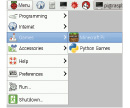
 Download the related worksheet from the website
 Get coding!
Schemes of work to teach can be found here.
Learning exercises and lesson plans can be found here.
Example projects and lessons include:
Some projects also involve monitoring an area at night or in dark places, so you can also use the IR (Pi NoIR) version of the camera module to sense movement in dimly lit places. View Product
If ever you believe your Raspberry Pi is not working, before you rule it as a broken unit, consult the troubleshooting forum here and here.
Tip: Always ensure you’re running the latest version of Raspbian. By running an older version, you run the risk of boot up issues.
Tip: Is your Raspberry Pi not powering on? Make sure you’re using a branded, reliable 2A 5V power supply. Using anything less than this and your unit may not be getting enough power.